Make Dataset
Make Dataset is the workspace for producing candidate training structures. It represents supercells, strain, perturbations, defects, surfaces, doping, and magnetic initialization as cards that expand trusted starting structures into a candidate pool.
Its output is normally not a finished training set. Use the following workflow:
::
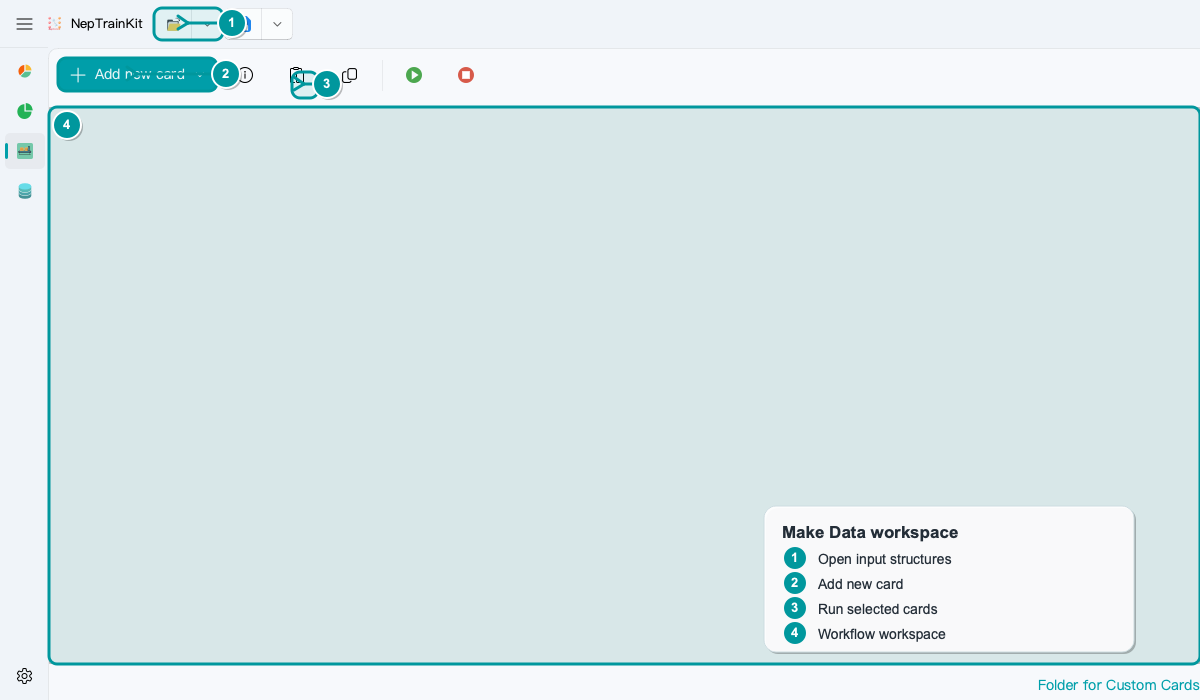
Basic workflow
Use
Openin the top toolbar to import the starting structures.Click
Add new cardand choose a generation or filtering card.Expand the card and set only the parameters required by the current physical objective.
Enable the cards that should run.
Click
Run.Check the output count on each card, then export the result.
Do not skip the import step. Most cards require existing structures as input. To generate from a crystal prototype without input structures, use the appropriate generator card and independently verify that its outputs belong to the intended material system.
Connect cards into a workflow
The most common arrangement is a linear chain:
Super Cell → Lattice Strain → Atomic Perturb
Each card processes the output of the preceding card. As a rule:
Modify the cell before modifying atomic coordinates.
Apply deterministic transformations before random perturbations.
Generate the candidate pool before cleaning and sampling it.
Use Card Group when the same input should follow several branches, for example one surface branch and one vacancy branch. Cards in the group share the input and their outputs are merged.
Choose a first card
Objective |
Start with |
|---|---|
Expand a simulation cell |
|
Start from a standard crystal prototype |
|
Add elastic-response structures |
|
补四方相变或层错 / GSFE 路径 |
|
Add near-equilibrium perturbations |
|
Create defects |
|
Create surfaces or stacking faults |
|
Vary alloy composition or site occupation |
|
Create magnetic configurations |
|
See the Make Dataset card manual for the complete selection table.
When to export intermediate results
Check the output count after every card runs. If it matches the intended combinatorics, export an intermediate file such as:
candidate_pool.xyz
candidate_pool_clean.xyz
candidate_pool_fps.xyz
These stage-specific files make it possible to trace a later problem to generation, cleaning, or sampling.
Where to place FPS Filter
Use FPS Filter for representative sampling after the candidate structures are reasonably clean. It does not determine whether a structure is physically sensible.
When a candidate pool comes from strong perturbations, random defects, surface cutting, or random occupation, export and clean it in NEP Dataset Display before applying FPS Filter.
See Clean candidate structures before DFT for the complete workflow.
Save and restore a workspace
Save and Load in the top toolbar store the card order, parameters, and enabled state as JSON. Use this to preserve a reusable generation recipe, such as a defect-candidate workflow for a particular alloy.
Saving the workspace does not save generated structures. Export structure results from their card separately.
Related documentation
Quickstart: install NepTrainKit and generate a first candidate set.
Card manual: choose cards by objective, compare similar cards, and read complete parameter references.
Workflow recipes: examples that combine several cards.
Custom card development: package an existing script as a Make Dataset card.
Create cards directly from documentation JSON
When the documentation provides one card object, an array of cards, or a complete card_config.json, copy the code block, return to Make Dataset, and choose Load → Paste Card JSON.
This action appends the clipboard cards and does not clear the current workspace. To replace the entire workspace, use Load → Import Card Config and select a saved JSON file.